Webhooks
Webhooks allow external services to trigger your Intellectible workflows automatically. When an event occurs in a connected service (like a form submission in Typeform or Tally), that service sends data to Intellectible, which then runs your workflow with the incoming data.
Use this guide to learn how to create webhooks, configure external services, and understand how webhook data flows into your workflows.
What Are Webhooks?
A webhook is a URL endpoint that external services can call to notify your workflow of events. Unlike API calls where your workflow reaches out to get data, webhooks are the reverse—external services push data to your workflow when something happens.
Common use cases:
- Run a workflow when someone submits a form (Typeform, Tally, Google Forms)
- Process data when a record is created in a CRM
- Trigger automation when a payment is received
- React to events from any service that supports webhooks
Webhook Sources
Intellectible supports two types of webhook sources:
Typeform
For Typeform forms specifically. Uses Typeform's signature-based verification (HMAC-SHA256) for secure communication.
Generic
For any service that supports webhooks with header-based authentication. The external service sends a secret token in the X-Webhook-Token header to verify authenticity.
Supported services for Generic webhooks include:
- Tally
- Airtable
- Notion
- Zapier
- Make (Integromat)
- Any service that can send webhooks with custom headers
Creating a Webhook
- Open your workflow and go to the Settings tab
- Scroll down to the Webhooks section
- Click Create Webhook
- Enter a Name for your webhook (e.g., "Contact Form Submissions")
- Select the Source:
- Choose Typeform if connecting to a Typeform form
- Choose Generic for other services
- Click Create
When you create a webhook, a secret is generated and displayed only once. Copy and save this secret immediately—you'll need it to configure the external service, and you cannot retrieve it later.
After creation, you'll see:
- Endpoint URL: The URL to configure in your external service
- Secret: Displayed only at creation (last 4 characters shown afterward)
- Status toggle: Enable or disable the webhook
Configuring External Services
Typeform Setup
- In Typeform, open your form and go to Connect or Integrations
- Add a Webhook integration
- Paste your Intellectible webhook Endpoint URL
- Enter the Secret you saved during webhook creation
- Save the webhook configuration
- Submit a test response to verify the connection
Generic Webhook Setup (Tally, Airtable, etc.)
For services that support custom headers:
- In the external service, find the webhook or automation settings
- Set the URL to your Intellectible webhook endpoint
- Add a custom header:
- Header name:
X-Webhook-Token - Header value: Your webhook secret
- Header name:
- Save and test the webhook
The webhook settings in Intellectible display the required header name (X-Webhook-Token) as a reminder. Make sure to configure this exact header in your external service.
Accessing Webhook Data in Your Workflow
When a webhook triggers your workflow, the incoming data is available through two inputs:
payload- The form submission data from the external servicewebhook- Metadata about the request (source, webhook ID, timestamp, headers)
Using Input Nodes
Use Input nodes to access webhook data in your workflow:
- Add an Input node and set its value to
payloadto access the form submission data - Add another Input node with value
webhookto access request metadata - Connect the data to nodes that process it
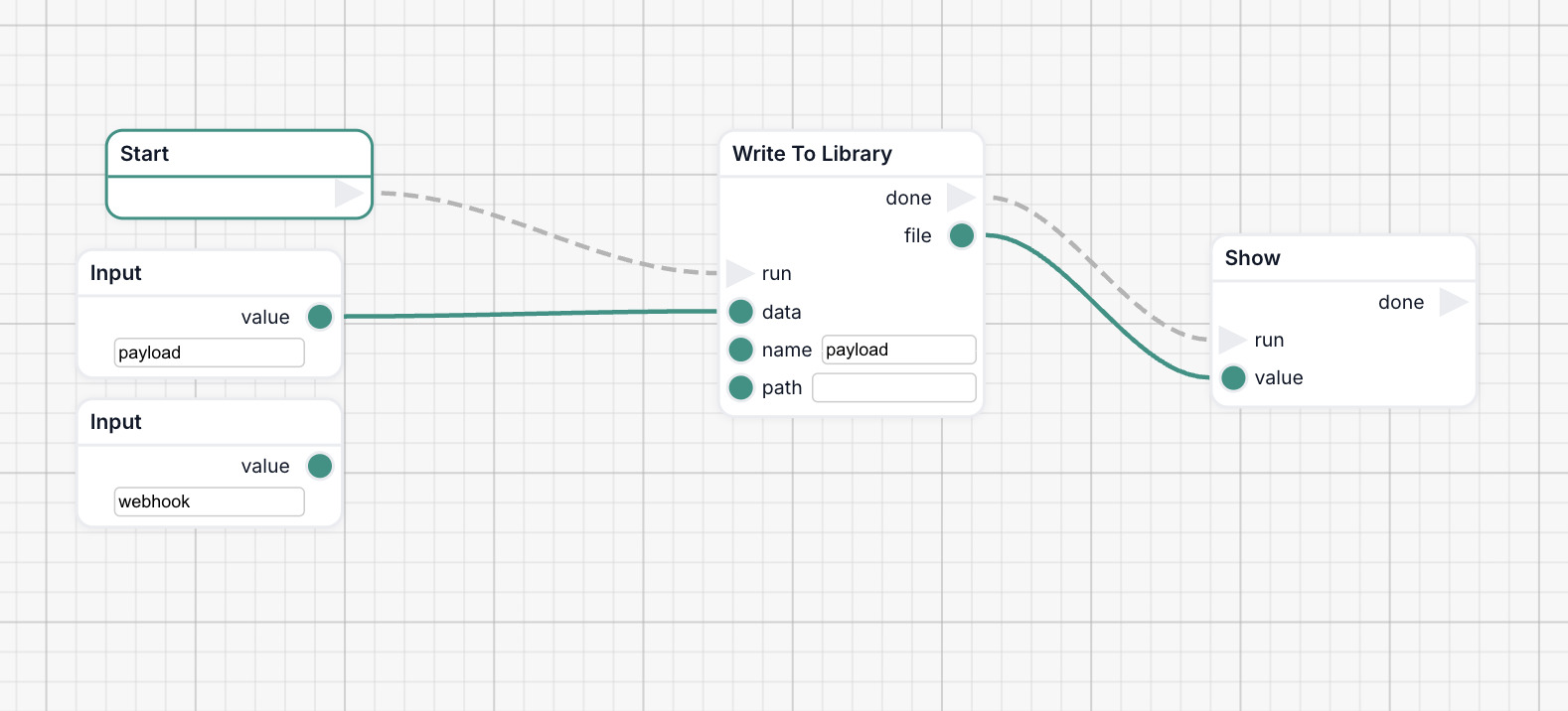
This example shows how to use Input nodes to access webhook data. The payload input contains the form submission data, while the webhook input contains metadata about the request.
Managing Webhooks
Enable/Disable
Use the toggle switch to enable or disable a webhook without deleting it. Disabled webhooks return a 410 error to the calling service—the external service will know the webhook is inactive.
Rotate Secret
If you need to generate a new secret (for security reasons or if compromised):
- Click Rotate Secret on the webhook row
- Confirm the action
- A new secret is generated and displayed only once
- Update the secret in your external service configuration immediately
When you rotate a secret, the old secret stops working immediately. Make sure to update your external service right away to avoid failed webhook calls.
Delete Webhook
To permanently remove a webhook:
- Click the delete (trash) icon on the webhook row
- Confirm the deletion
The webhook endpoint will no longer accept requests and will return a 404 error.
Troubleshooting
Webhook not triggering
- Check webhook status: Ensure the webhook is enabled (toggle is on)
- Verify the URL: Make sure the external service is using the exact endpoint URL
- Check the secret: For Typeform, verify the secret matches. For Generic webhooks, ensure the
X-Webhook-Tokenheader is set correctly - Test the external service: Most services have a "test" or "send test" button
401 Unauthorized error
The secret or signature verification failed:
- Typeform: Double-check the secret in Typeform's webhook settings
- Generic: Verify the
X-Webhook-Tokenheader is set with the correct secret
410 Gone error
The webhook is disabled. Enable it in the Workflow Settings.
404 Not Found error
The webhook was deleted or the URL is incorrect. Create a new webhook or verify the endpoint URL.
Security Considerations
- Secrets are shown once: Save your webhook secret immediately when creating or rotating
- Use HTTPS: All Intellectible webhook endpoints use HTTPS for secure transmission
- Signature verification: Every incoming request is verified before triggering your workflow
- Sensitive headers filtered: Authorization headers and cookies from incoming requests are stripped before being passed to your workflow
Limitations
- Fire-and-forget: Webhooks trigger workflows asynchronously. The external service receives a 200 OK immediately and does not wait for or receive the workflow result.
- No payload transformation: Webhook payloads are passed through as-is. Use workflow nodes to transform and extract the data you need.
- One workflow per webhook: Each webhook triggers a single workflow. Create multiple webhooks if you need to trigger different workflows from the same source.