Jobs
The job system in Intellectible allows you to:
- schedule workflow runs and
- run a workflow multiple times as a batch job.
Creating a job
To create a job, head to the jobs tab within your project. Click create new job and select a workflow.
To enable a workflow for jobs, go into workflow settings and check the "Use workflow as job?" checkbox.
Job runs
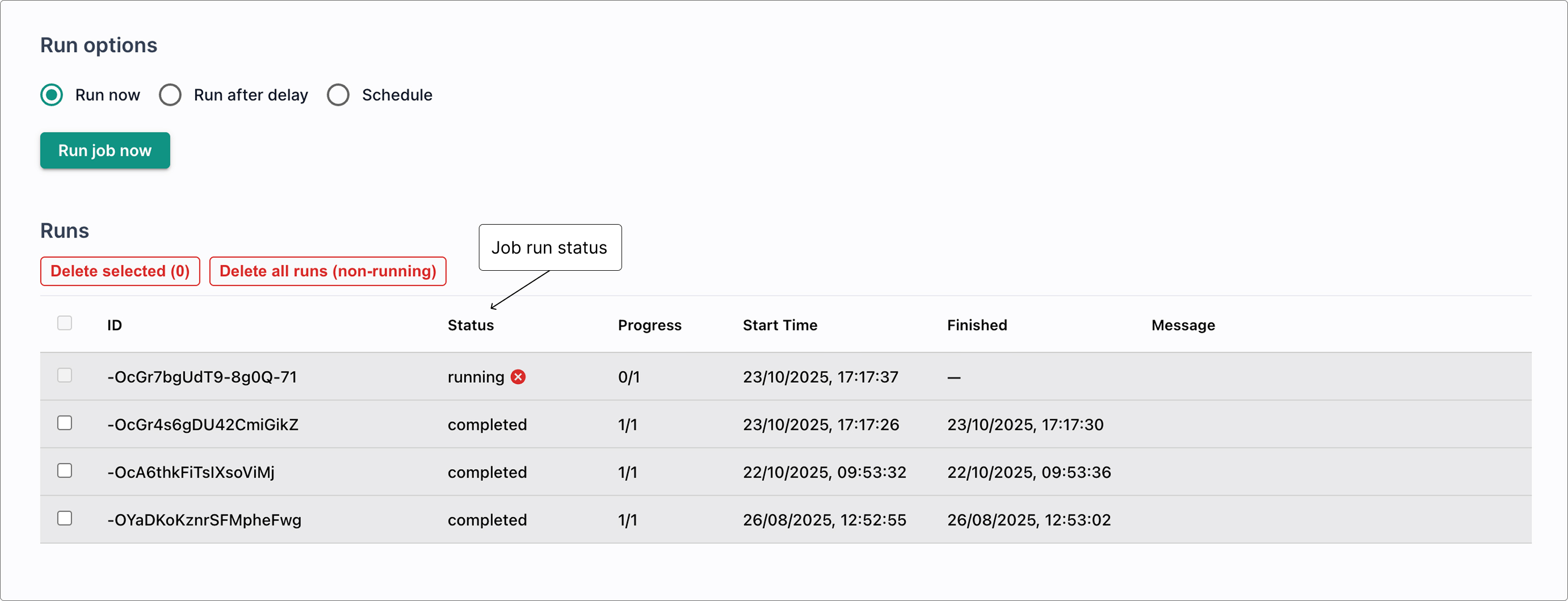
Whenever a job is run, a job run is created. You can view your job runs in the runs table on your job's page. It will show you the current status of each run. Your job can be in one of the following states:
Queued: The job is waiting to be run.Running: The job is currently running.Completed: The job has finished successfully.Failed: The job has finished with an error.Cancelled: The job was cancelled before it could complete.
Batch Jobs
Batch jobs allow you to run a workflow multiple times for a given job.
This is useful if you have a long running task, that can be split into multiple workflow runs.
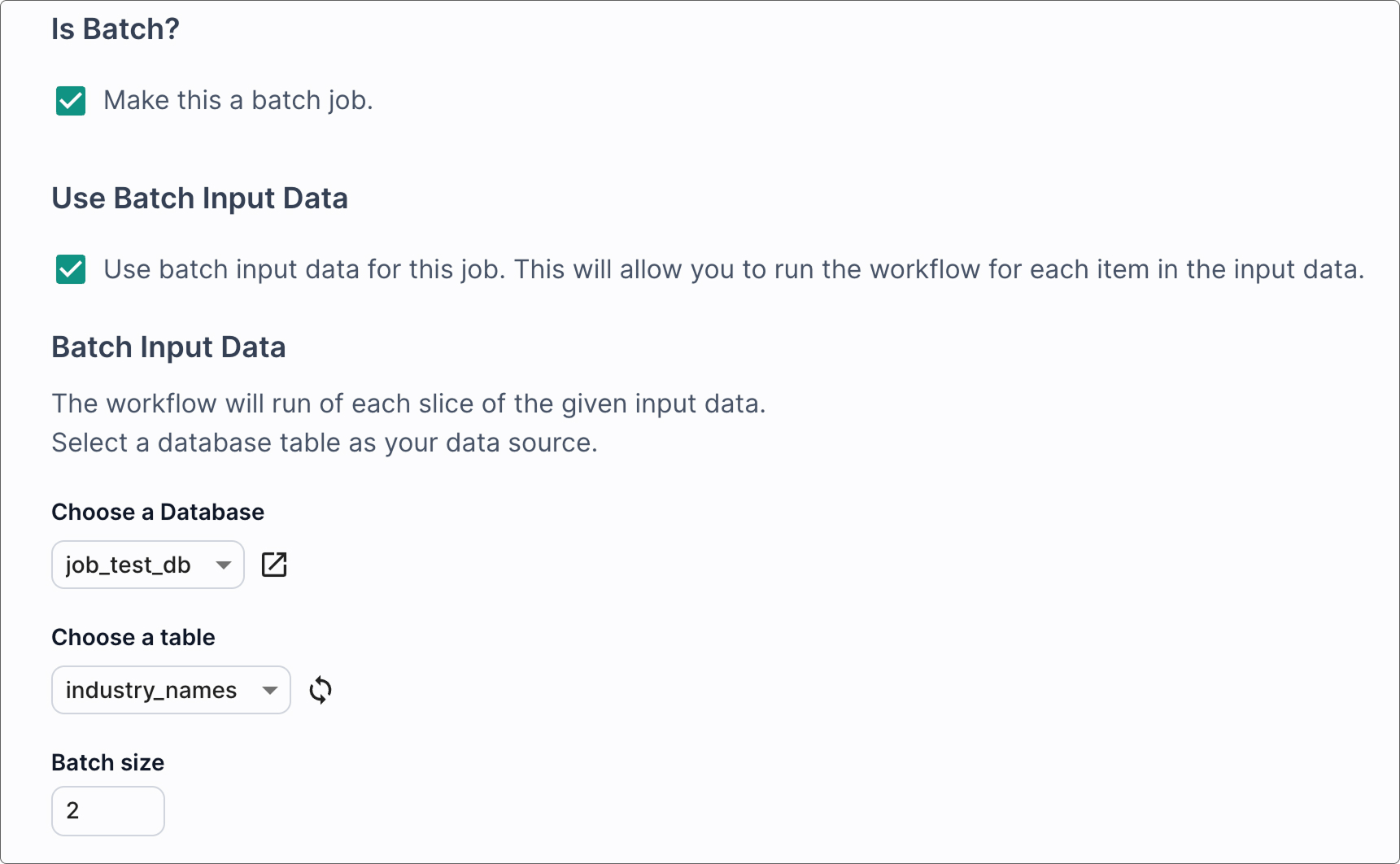
To make a job into a batch job, check Is Batch? on the job page.
There are two ways to configure a batch job, a) set a number of runs, or b) select database table and a batch size.
To toggle between these options check Use Batch Input Data.
Batch runs
When you set the number of batch runs, this is the number of times your workflow will run. This is useful if you have a looping task that is long running and you know how many times you want to run the workflow, or if you have your own source of input data and you want to manage the process yourself. Use the Batch Index node to get the current batch index within your workflow.
Batch input data
If you have Use Batch Input Data checked, you will have the option to select a database, a table, and a batch size.
This will run the workflow multiple times, each time passing in a batch of rows from the selected table.
The batch size determines how many rows are passed into each workflow run.
Use the Batch Data node to access the input data within your workflow.
Running a job
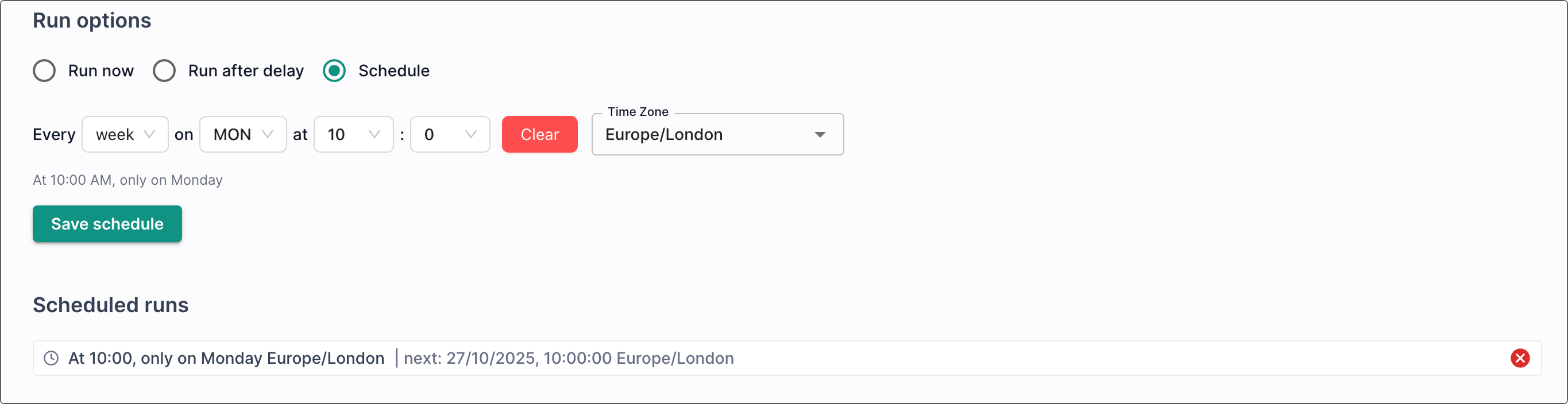
On the job page there are three different run options, Run Now, Run After Delay, and Schedule.
Run Nowwill immediately queue a job run.Run After Delaywill queue a job run after a specified delay in seconds, minutes, or hours.Scheduleallows you to set up a recurring schedule for the job to run at specified intervals. Once you have created a schedule it will appear in the schedules table on the job page. A new job run will be queued each time the schedule triggers. To remove the scheduled job, click the red cross icon next to the schedule. It will remove the schedule and cancel any queued job runs associated with it. Any job runs that have already started will continue until they are complete or cancelled.
Cancelling a job
If a batch job is currently running you can click the red cross icon to attempt to cancel the job run. Batch jobs will make a best effort to cancel all remaining runs in the batch.
Cancelling a schedule will cancel any queued jobs that have not yet started. If the run has already started, it will continue until it is complete or cancelled.
