Logs and troubleshooting
Logs help you understand what happened during a workflow run: which nodes executed, what they reported, and where a failure occurred. Start by choosing the right log source—editor tests, API-triggered work, and job runs are not all shown in the same place.
Find the right logs
| How the workflow ran | Where to look |
|---|---|
| Run in the workflow editor | Open the workflow's Logs tab and select Editor. |
| Public API, webhook, or MCP | Open the workflow's Logs tab and select API. |
| Job flow, including a scheduled job | Open the job's Runs table and click Logs for the relevant run. |
A request rejected before execution—for example, an invalid webhook signature—does not start a workflow run. Inspect the caller's response or delivery history first if there is no corresponding execution.
Read and narrow the results
The table includes a timestamp, severity level, and message. Additional context can include the node type, node ID, and workflow invocation ID. The invocation ID helps distinguish separate executions of the same workflow, especially when external callers are active at the same time.
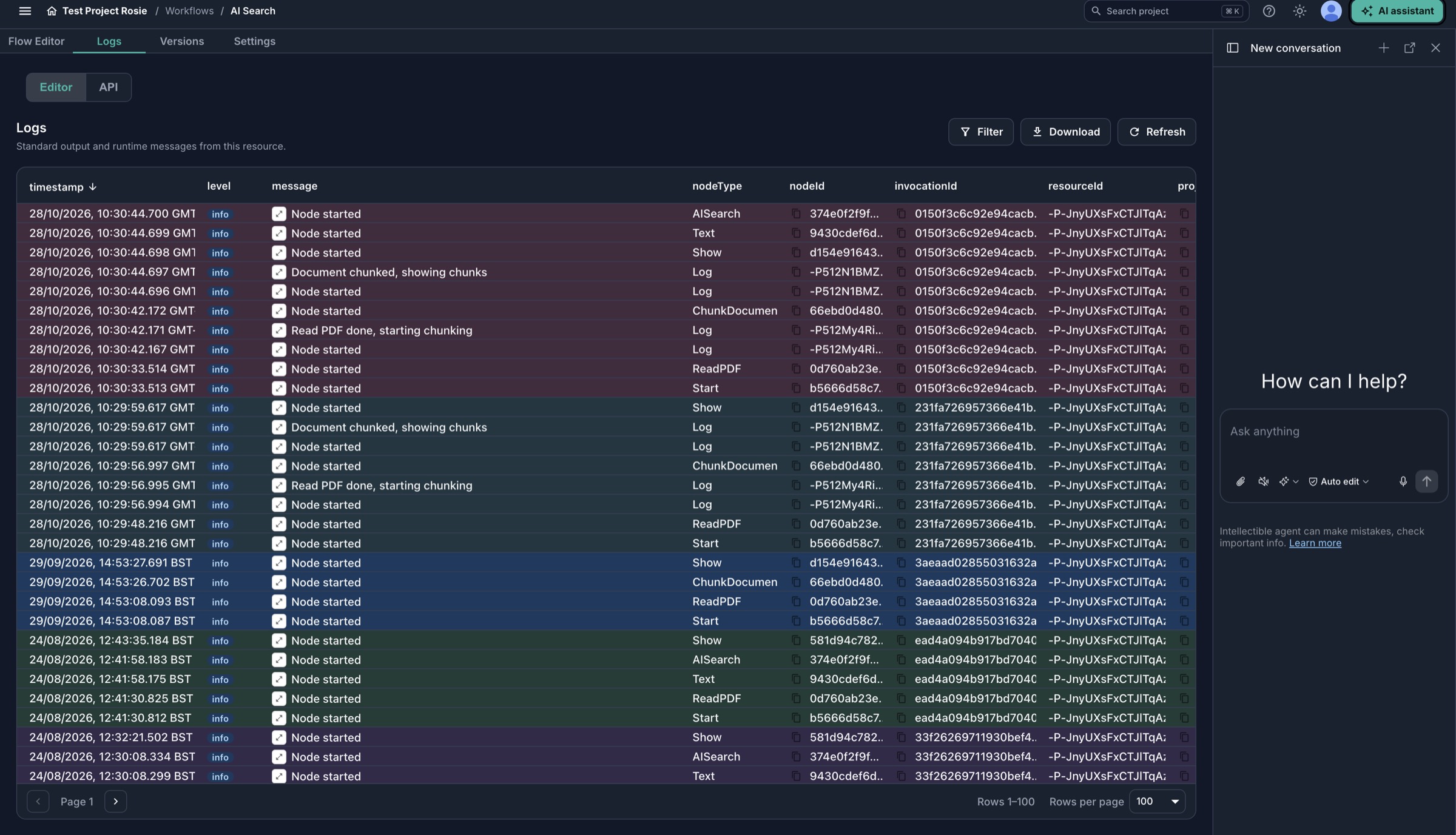
Rows are colour-coded by invocation ID, so messages from the same workflow run share a background colour. Different runs are highlighted in different colours to help you follow them when their messages appear together. These colours identify runs, not success, failure, or severity—use the level column and message for that. Use the invocation ID and filters when you need to identify a run precisely, rather than relying on colour alone.
- Click Refresh to fetch current entries.
- Use Filter to narrow the available fields, such as a particular invocation ID, level, or node ID.
- Use the timestamp order and paging controls to follow the relevant period.
- Click a message's View full message control to inspect long content. You can copy the message from the expanded view.
When opening logs from a job run, the viewer starts with that run's ID filter. Keep that condition when adding more filters if you want to stay focused on the selected run.
Download retrieves the selected log resource's file in Parquet format. It is not an export of only the currently filtered rows or visible page. Review its contents before sharing it.
Add useful messages
Add a Log node at an important checkpoint. Connect an event to its run input, configure a message and level, and connect done to the next action if the sequence should continue.
Use concise messages that make the process easier to follow, such as “Document downloaded” or “No matching records found”. Include a non-sensitive record identifier when useful; avoid logging whole customer records, credentials, or private document contents.
The levels are debug, info, warn, and error. A Log node writes at the level you choose; an error message is not, by itself, proof that the runtime stopped. Likewise, “Node started” does not prove that the action completed successfully. Check subsequent messages and the caller's final result or job status.
Troubleshoot common problems
| Symptom | What to check |
|---|---|
| No logs for the request | Correct project and workflow, Editor/API selection, filters, request acceptance, and whether a queued job has started. |
| Accepted runs remain queued | Check Waiting, Active, and Free in the project's workflow runtime groups. Available capacity and other execution limits can affect when work starts. |
| An action never runs | Its event input and the branch leading to it. Data connections alone do not trigger controlled nodes. |
| A value is missing | Exact Input names, the caller's payload, data types, and whether the node producing the value ran first. |
| The workflow finishes without the expected output | The Set Output name, value, and event connection, including on alternative branches. |
| External-service authentication fails | The selected connection, its authentication, and access within the project. |
| A repeated test appears to reuse old data | Whether the relevant node uses a cache. Where available, use Clear Node Cache before testing again. |
Change one part at a time and repeat a small, safe test. The agent can inspect the graph and validate its wiring, but that does not replace checking real execution results.