Modules
A module is a workspace for building and running software. It brings together your code, a small computer in the cloud, terminals, Git, application previews, and deployments. You can work directly in the editor or ask the Intellectible agent to build alongside you.
Use a module for a website, an internal dashboard, an API, or a custom service. You are not limited to a set of page templates or workflow nodes: you can write code, install dependencies, and run the tools your application needs, within the environment's resources and supported runtime capabilities.
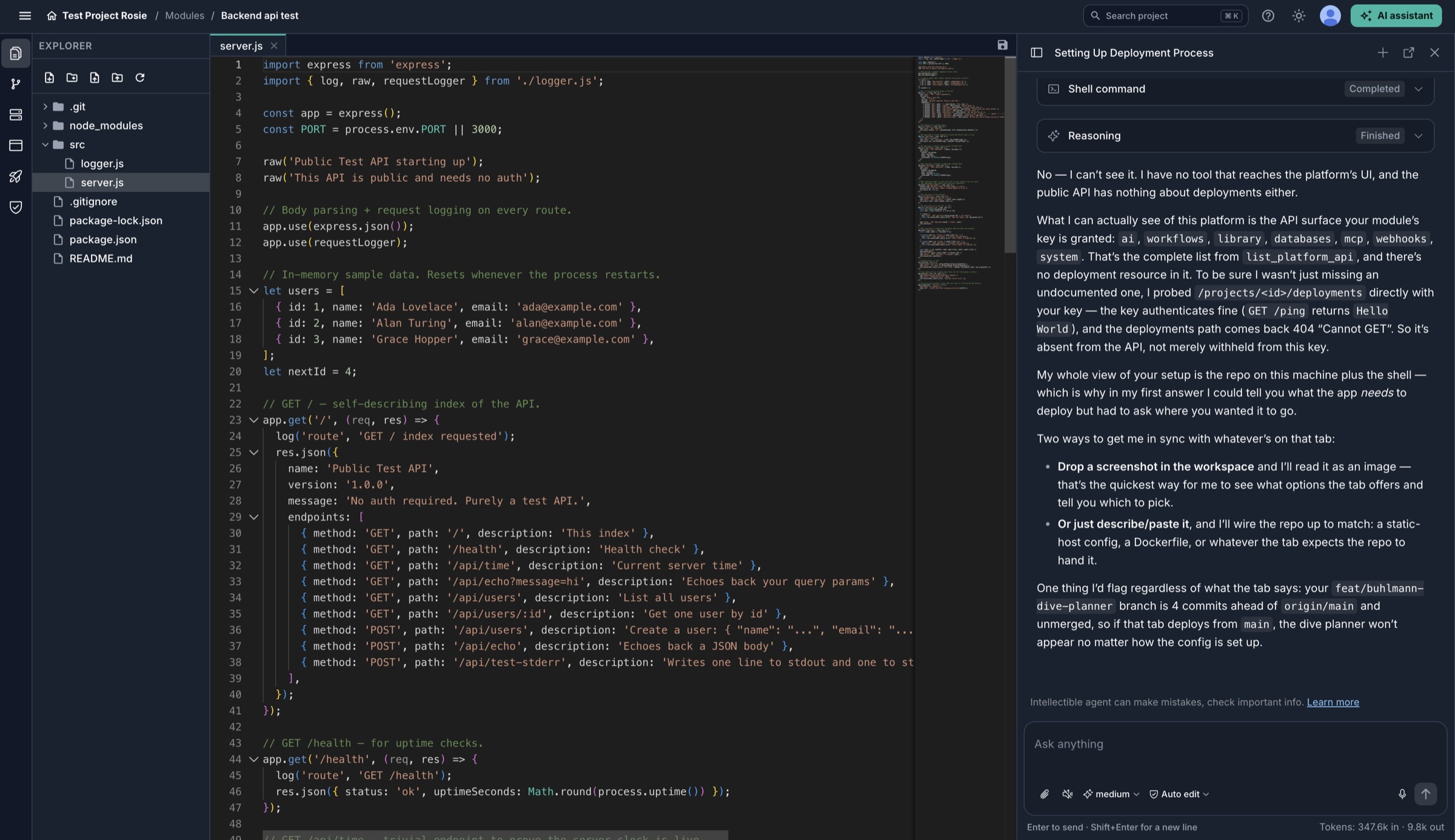
Work with your source files and the Intellectible agent side by side in the module editor.
How a module works
There are three related but separate parts:
| Part | What it does |
|---|---|
| Development machine | Runs your editor's workspace, terminals, tools, and development servers. This is where you build and test. |
| Git repository | Stores the module's shared code and version history. Commit and push work here to share it or make it available for deployment. |
| Deployments | Run a published version on separate machines, with their own settings and URLs. They do not depend on keeping your editor open. |
Saving a file changes your development workspace. Committing records a version locally; pushing sends it to the module's repository. Deploying publishes a version from that repository. These are separate actions, so a change in your editor does not immediately change the live application.
Create your first module
- Open a project and choose Modules in the project navigation.
- Use the create control and give the module a descriptive name, such as
Customer portalorReporting API. - Open the module and wait for its development machine to be ready.
- Start with the agent, browse the files, or open a terminal from the module welcome screen.
A useful first prompt is:
Help me build a small invoice-review application in this module. Explain the proposed structure, create a working first version, and show me how to test it in a development preview. Don't deploy it yet.
The agent can work in the same development workspace as you: editing files, running commands, reviewing Git changes, and testing the application. Be clear about whether you want it to plan, implement, test, or deploy. Review the result and test the important paths before publishing.
Find your way around
The module editor has focused areas for different tasks:
- Explorer — browse and edit your source files.
- Dev Machine — open terminals, manage startup commands, and inspect or restart the environment.
- Source control — review changes, manage branches, commit, and synchronise with the repository.
- Pages — save and open development previews. These are not the document Pages in the project navigation.
- Deployments — configure and publish running applications, inspect logs, and manage domains.
- Authentication — configure sign-in, application users, roles, and access rules.
Files, terminals, previews, and settings open as tabs so you can move between them without leaving the module.
Connect the application to your project
A module can use Intellectible's other services through the public API. For example, your application can call a workflow to process a document, save the result in a database, and retrieve the original file from the Library.
The module's project API key controls which operations its code can perform. Having a key does not automatically grant access to every service. See Using project services before building an integration.
A typical build cycle
- Describe the feature and plan it with the agent.
- Edit the code and install the dependencies it needs.
- Run tests and inspect the application in a development preview.
- Review the changes, commit them, and push the branch.
- Configure a deployment and publish when you are ready.
- Check the deployed URL and logs, then keep iterating in the module.
You can have more than one deployment—for example, a staging deployment and a production deployment using different branches or settings.
Explore the module guides
- The development environment — understand the cloud computer, persistent files, and machine lifecycle.
- Code, terminals, and startup commands — edit files and run your tools.
- Git and source control — save versions, share code, and work with branches.
- Development previews — view and test the application before deploying.
- Deployments — publish, configure, scale, and monitor an application.
- Authentication and access — control who can use the deployed application.
- Using project services — connect code to workflows, files, databases, and AI.