Pod concurrency and runtime groups
Concurrency controls how many workflow runs can be in progress at the same time on a workflow runtime pod. A pod is a unit of compute that executes workflows; several runs can share its CPU and memory. Increasing concurrency allows more runs to overlap, but does not give each run more processing power.
These settings live in Project settings → Workflow runtime groups. They apply to a group of workflows, rather than to the individual nodes in a graph.
How runtime groups work
Every workflow belongs to a runtime group within its project. Workflows without a specific group use Default. Workflows in the same group share its execution queue and pod capacity, regardless of whether they were started from the editor, API, MCP, webhooks, or jobs.
There are two related settings:
| Setting | What it controls | Platform default |
|---|---|---|
| Pods | The maximum number of pods the group can hold. It is a ceiling, not a number kept permanently running for the group. | 2 |
| Concurrency | The maximum number of workflow runs a single pod can process at once. | 100 runs per pod |
With those defaults, a group can have up to 200 active runs across two pods, sharing that capacity between all its workflows. This is a configured capacity ceiling, not guaranteed throughput or a promise that 200 runs will start immediately. Available platform capacity, project execution quotas, and resource-specific limits still apply.
The platform can configure different defaults, and your project's allowed overrides may vary. Check the values and limits displayed in Project settings. Leaving a setting blank uses the platform default; it does not mean unlimited capacity.
What happens when work arrives?
Intellectible uses free slots on pods the group already holds first. If queued work exceeds those free slots, it can claim more pods up to the group's Pods limit, subject to availability. Once that capacity is full, accepted runs wait for a slot.
Pods are claimed on demand and returned to the shared pool after the group has no queued work and the pod has been idle for the platform's idle period—10 seconds by default. Seeing no pods held while nothing is running is normal.
Concurrency is not a requests-per-second limit. A long-running workflow occupies a slot longer than a short one. Nor does increasing it make the nodes inside one workflow execute in parallel: event connections still determine the workflow's sequence.
When should you change it?
Start with the defaults, then adjust based on representative runs and observed behaviour.
- Lower concurrency for resource-heavy workflows. Large document transformations, CPU-intensive code, or memory-heavy processing can contend for the same pod resources. Fewer simultaneous runs may improve reliability and individual run times, at the cost of more waiting.
- Allow more overlap for lightweight, waiting-heavy work. Workflows that spend much of their time waiting for external APIs may benefit from more simultaneous runs. If you previously lowered concurrency, increasing it may help; going above the default depends on the limits available to your project.
- Increase the pod limit when a busy group needs more compute capacity. This allows work to spread across additional pods when demand requires it. It is different from squeezing more runs onto each existing pod.
- Separate workloads with different needs. A dedicated runtime group for heavy document processing lets you tune it separately from short application requests. Groups separate queues and held pods, but do not bypass project-wide quotas or external-service limits.
More concurrency is not always faster. It can increase memory pressure, CPU contention, and simultaneous requests to external services. Some expensive operations also have their own resource limits, so raising concurrency may simply move the waiting to another point in the process.
Lowering concurrency can reduce pressure on an external service, but it is not a precise rate limiter. Keep appropriate retry and backoff behaviour in your integration.
Change a group's settings
Project owners and admins can manage runtime groups.
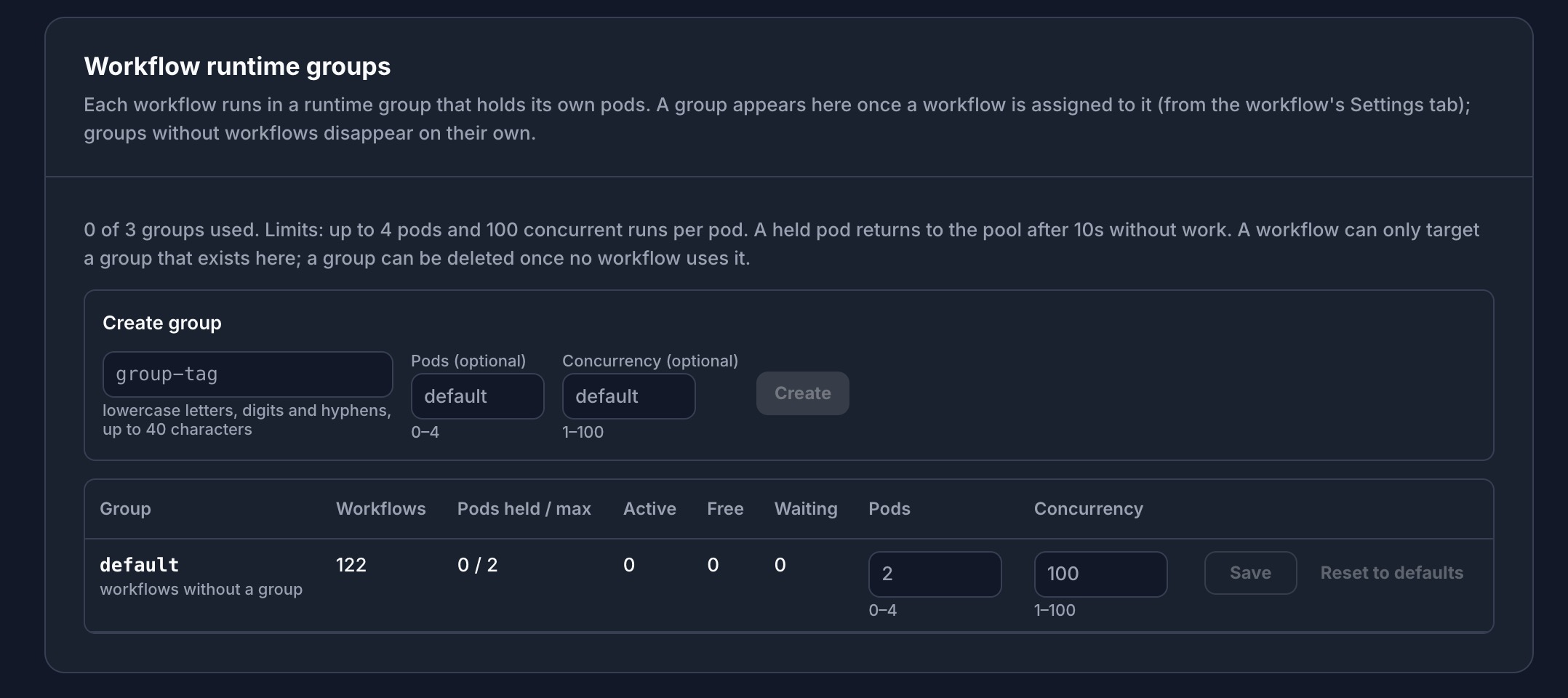
Manage each group's pod limit and per-pod concurrency alongside its live capacity figures. Here, the default group allows up to two pods with 100 concurrent runs per pod; it currently holds no pods because it is idle.
- Open Project settings, then find Workflow runtime groups.
- Find the group used by your workflow. Use
defaultif it has not been assigned another group. - Enter a whole-number Concurrency of at least 1, within the displayed limit. Adjust Pods if needed.
- Click Save on the group's row.
- Run a representative test and watch the queue, run durations, and logs before making another change.
Use Reset to defaults to remove that group's overrides for both settings. To reset just one setting, clear its field and save.
Settings changes do not cancel or restart active work. Concurrency is applied when a pod is assigned to a group; already-held pods can retain their previous concurrency until they are released and assigned again. Lowering the pod limit also does not immediately remove busy pods. Allow the workload to settle and check live capacity before judging the effect of a change.
Use a separate group
In Project settings, use Create group, enter a descriptive tag such as document-processing, and optionally set its Pods and Concurrency values. Then open the workflow's Settings → Runtime, and select it under Runtime group. The Manage runtime groups link takes you back to Project settings.
Creating a group does not move workflows into it automatically. Assign the workflows you want to share that group's capacity. A named group must exist before it can be selected, and cannot be deleted while workflows still use it.
For example, Pods = 2 and Concurrency = 5 allows up to ten overlapping runs in that group, five per pod. Concurrency = 1 alone does not make a whole group single-run: two pods could still process two runs at once. Use both Pods = 1 and Concurrency = 1 if you need one execution slot for the group, after existing capacity has settled. Do not rely on that setting alone for deduplication or business-level ordering guarantees.
Read the live capacity figures
The runtime groups table shows:
- Workflows: how many workflows are assigned to the group.
- Pods held / max: how many pods it currently holds and its configured limit.
- Active: workflow runs currently being processed.
- Free: available execution slots on currently held pods.
- Waiting: runs queued for execution.
A rising Waiting count with no Free slots suggests demand is exceeding the currently available slots. Check run duration and resource or service errors before increasing limits. A run can be active while waiting for an external service or an internal resource—it is not necessarily consuming CPU continuously.
Use workflow logs and the job run table alongside these figures. Batch-step worker count determines how many batch runs a job creates; pod concurrency determines how many workflow runs can execute together. They are separate controls.